Native iPhone and iPad app in development. Connected reporting through Hub’s Staff Portal. No public download yet.
Know Which Service You’re In.
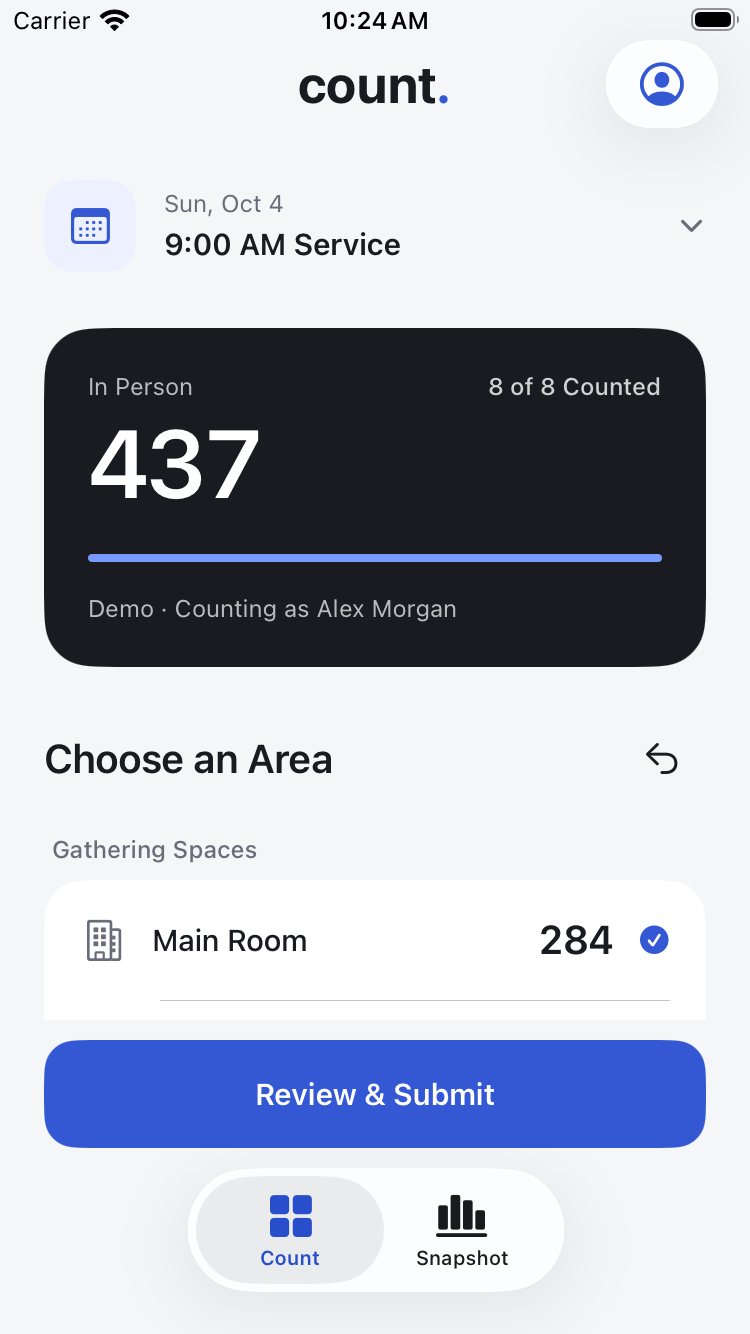
The overview gives the coordinator a service-specific picture of the count. Area progress helps show what has been covered before the total is reviewed.
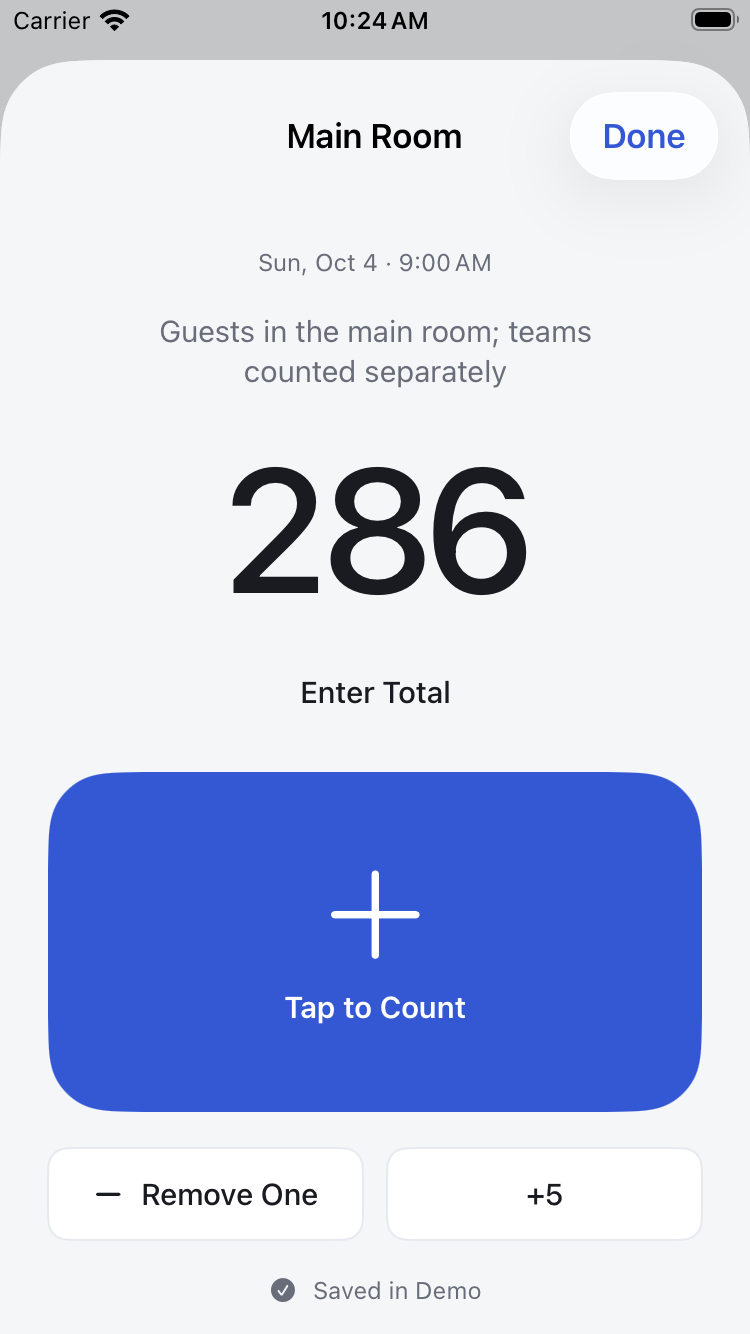
A focused counter gives a volunteer a large tap target and simple corrections. The area name and service stay visible while the count is being recorded.
Tap to add a person or enter a total.
Correct a count with Remove One.
Follow the church’s rules for who belongs in each area.
Use the service schedule connected by your church. Staff sign in, and invited volunteers use a personal service invitation.
02
Count Your Space.
Tap to count, enter a total, or adjust with plus and minus. Review empty spaces, track chairs, and add notes where needed.
03
Confirm the Picture.
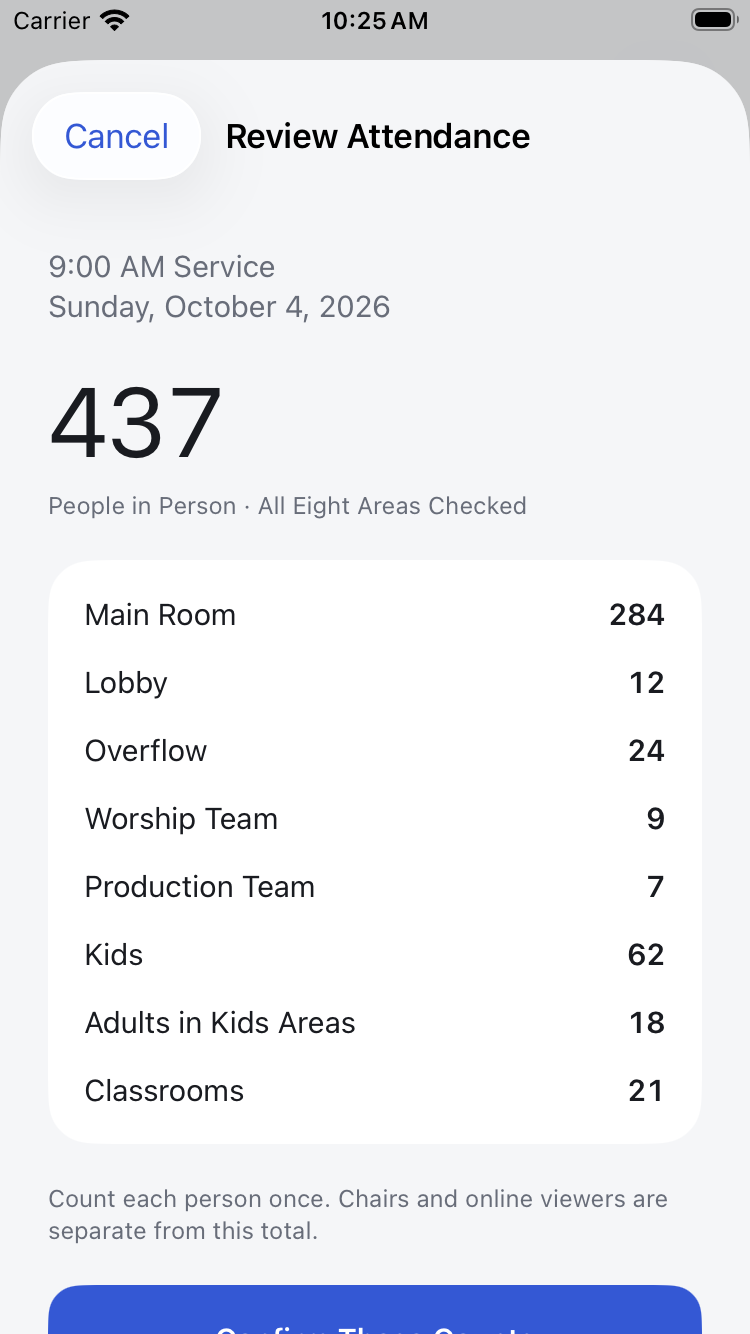
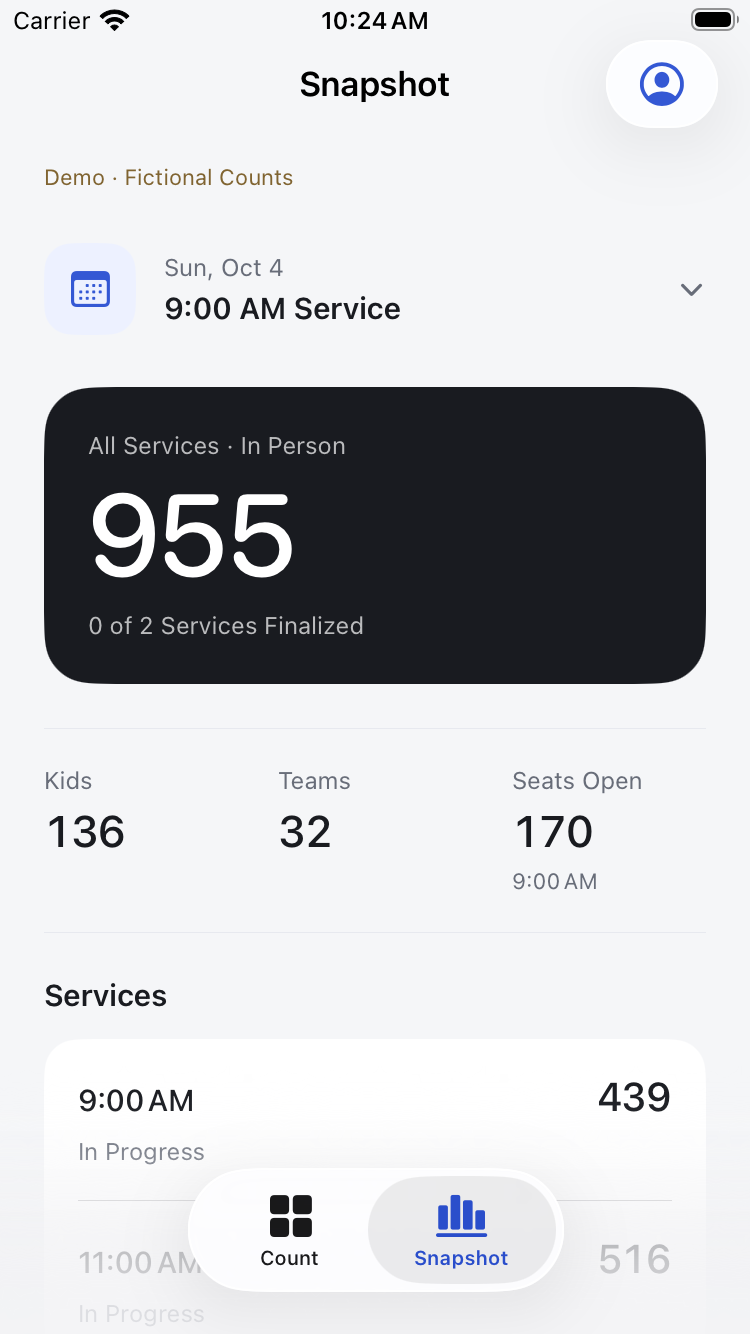
Review the areas, confirm your name, and finalize the service. Shared snapshots help the team see the day together.
Thoughtfully connected
Review the Whole Service
Count & Snapshot
Two focused views: record the attendance in front of you, then see the shared picture across the day’s services.
Named Participation
Staff and invited volunteers work within their authorized service and areas, with each change attributed to a counter.
Review Before Finalizing
Every area needs review. Finalization includes a named confirmation and a retained submission receipt.
Connected Reporting
Uses the same attendance records as the participating church portal, with Planning Center service occurrences and a configured Google Drive export.
Where Count is today
Current Availability
ChurchOps Count is a separate app in development. Public App Store and TestFlight distribution have not yet begun.
Its current connection is configured for Crosswalk. A participating church account or a staff-issued service invitation will be required. An internet connection is required to save attendance.
Interested in Count for your church? We’d love to hear how your service team works.
Proposed Count pricing is $19/month or $190/year per campus, or included through Hub’s All Products Add-on. Count is in development. Its current reporting uses Hub’s Staff Portal; standalone onboarding and reporting must be confirmed before a separate Count subscription is offered.
Authorized staff use attendance tools in Hub’s Staff Portal. A separate Count web app is not currently offered.
iPhone
Native App · In Development
The handheld counting workflow. Current build requires iOS 18.2 or later; no public download yet.
iPad
Native App · In Development
Count and review the service on iPad. Current build requires iPadOS 18.2 or later.
Mac
Connected Hub Reporting
Use authorized attendance tools in Hub’s Staff Portal. No native Count desktop app announced.
Windows
Connected Hub Reporting
Use authorized attendance tools in Hub’s Staff Portal. No native Windows Count app announced.
Apple Watch
Not Announced
Count does not currently offer an Apple Watch app.
What to Know Before You Start+
Who It’s For
For service coordinators and invited volunteers recording attendance by area and reviewing the service total.
Getting Access
The current connection is configured for Crosswalk. Staff need the appropriate church membership and attendance permissions; volunteers use a named, service-specific invitation.
Internet & Syncing
Internet is required to save counts and receive confirmed shared totals. There is no offline submission queue. Plan device and network coverage before the service.
How the Experiences Connect
Count is a separate app. The related browser attendance and reporting tools are part of Hub’s Staff Portal and use the same configured attendance records.
Questions & Answers
Is Count Part of the ChurchOps App?+
Count is a separate, focused app for attendance. It connects to the participating church’s staff portal attendance records. It is not currently included as a public download with a ChurchOps subscription.
Can Volunteers Help Count?+
The app supports personal invitations issued by authorized staff. An invitation is limited to a service and approved counting areas, and can expire or be revoked.
Does Count Work Offline?+
An internet connection is required to save counts. Count shows confirmed server information; there is no offline submission queue.
What Do the Totals Represent?+
Combined service totals are attendances, not unique people. Chairs and online viewers are separate from the in-person attendance total.
Where Can I Get Support?+
Contact your service coordinator for service access or an invitation. For product questions, email hello@church-ops.com. The billing and in-app account-deletion directions on the existing support page refer to the original ChurchOps app.