Hub’s Request Portal gives the people working with your church a clear path from submission to follow-up. Church-specific forms and a requester portal help keep invoices, reimbursements, and event requests connected.
Online on Mac, Windows, iPad, and iPhone. A ChurchOps Hub feature; use your church’s request access link.
Give Finance the Full Picture.
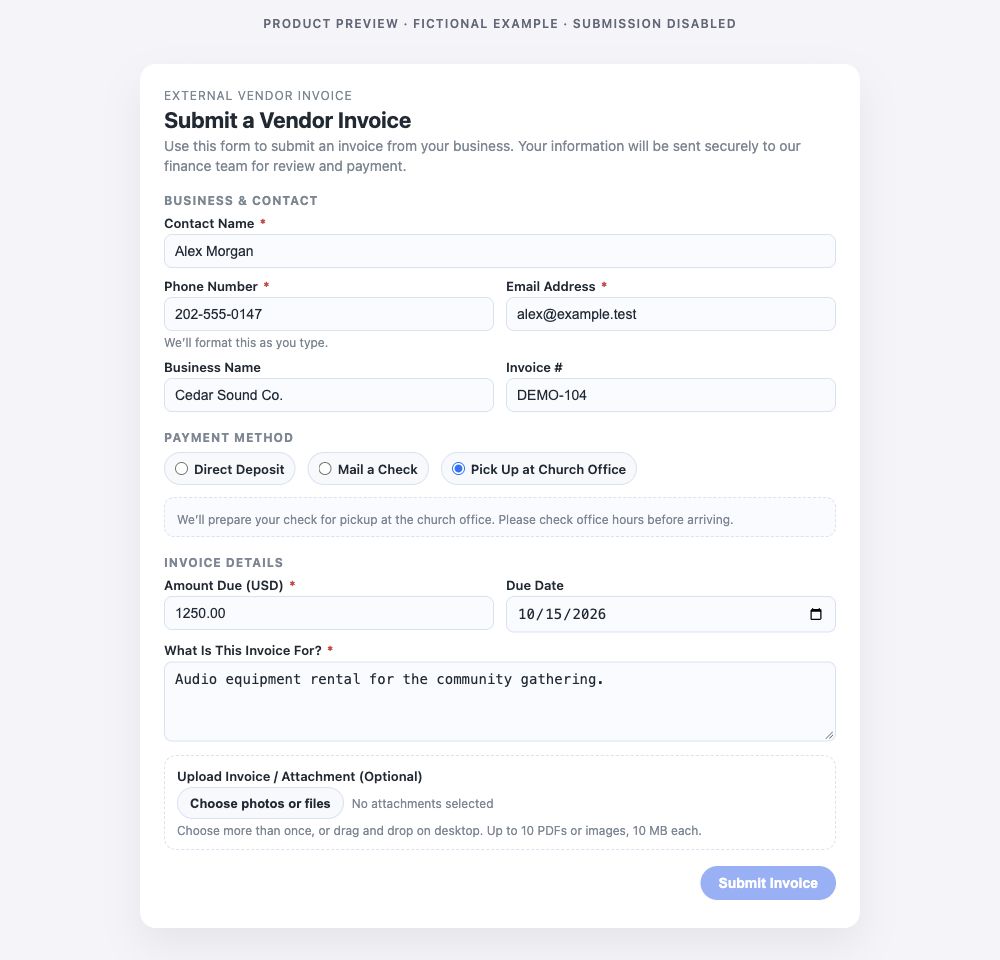
A vendor can provide contact details, invoice information, a payment preference, and supporting documentation. The church receives the context it needs to review the request.
Identify the vendor and the invoice being submitted.
Include the amount, due date, and reason for the charge.
Attach an invoice or supporting files when needed.
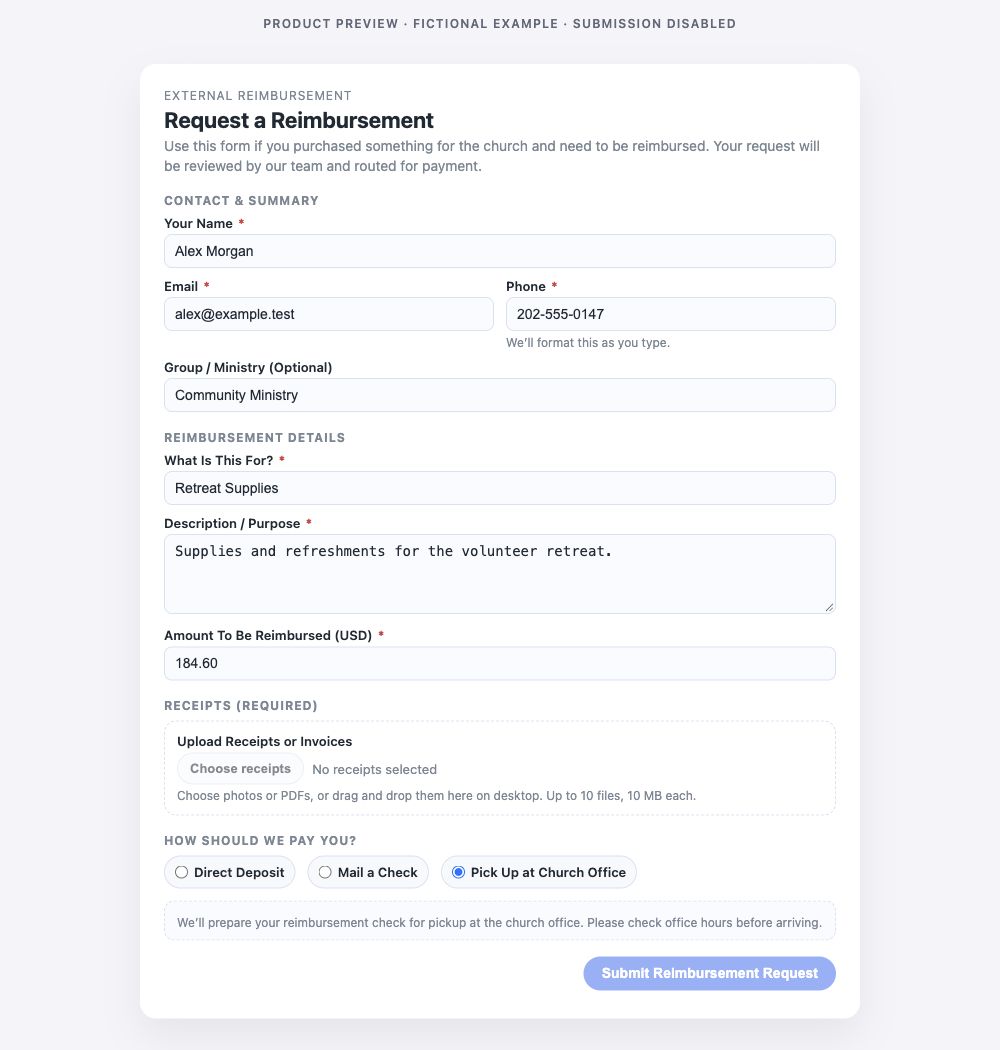
A volunteer or staff member can explain an expense and provide the supporting receipt. A clear request helps the church review what was purchased and why.
Include the requester’s contact information.
Describe the ministry purpose and amount.
Provide receipts and the requested payment information.
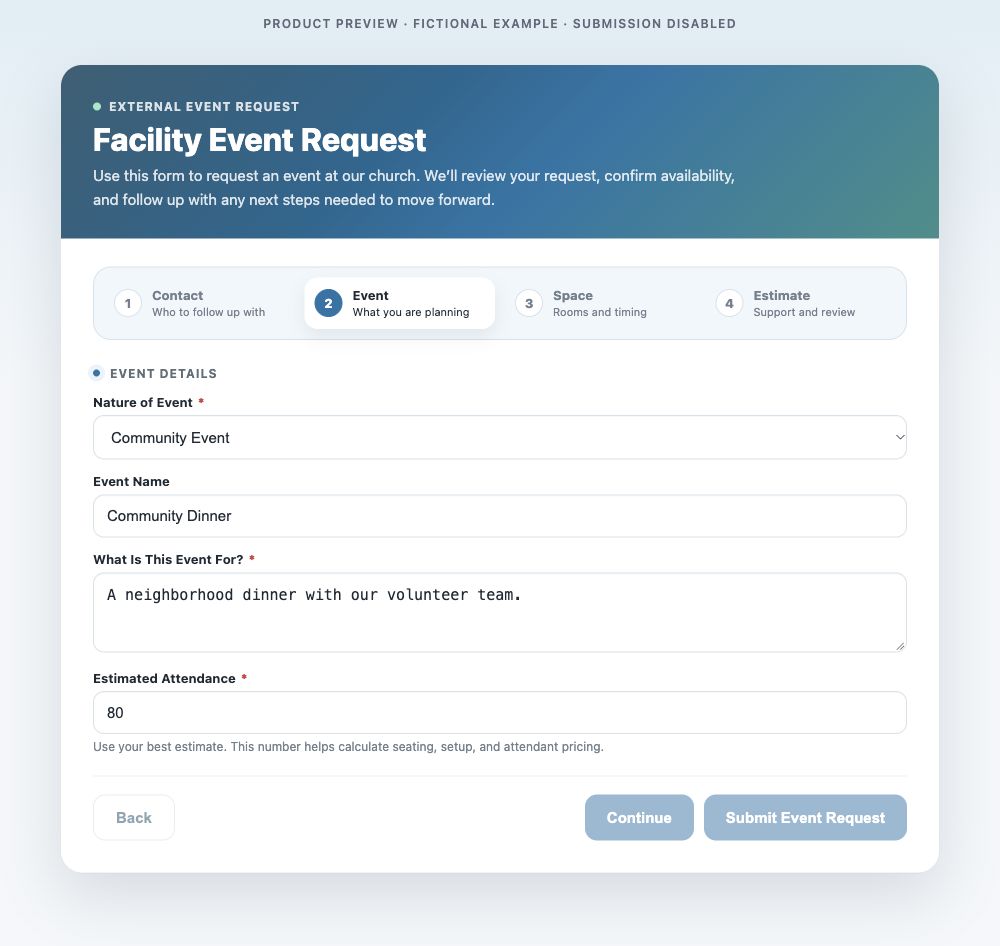
A facility request gives the church a starting point for reviewing the event, expected attendance, location, and timing. Submission begins the review; it does not reserve the space.
Describe the event and expected attendance.
Share proposed dates, times, and facility needs.
Wait for the church’s decision before treating an event as confirmed.
Send invoices and supporting files through the church-specific invoice form. Keep the submission tied to the team handling it.
Reimbursements
Provide expense details and receipts through the reimbursement form supplied by your church.
Facility Event Requests
Share the information the church needs to consider a facility event, from the event details to the requested space.
Requester History
The existing portal provides requesters a filtered history of their own submissions. Follow the status without needing a staff workspace.
A place for the right information
Built for Requesters. Connected to the Team.
Hub provides different browser entry points for staff and external requesters. External requesters use its email-code sign-in flow; church staff use their own authorized tools.
Use the email associated with your request and follow the portal’s instructions. Contact the church directly for decisions, corrections, or questions about a payment.
CURRENT AVAILABILITY
Start with Your Church.
The existing Request Portal serves Crosswalk. Submission forms need the church-specific link so requests reach the correct team.
For another church, contact us to discuss setup and availability before directing vendors or volunteers to a portal.
Hub’s Request Portal runs online in your browser. Open your church’s link on the device you already use; no separate portal app installation is needed.
Church-specific forms and your own request history, with email-code access.
iPhone
Mobile Browser
Open your church’s portal link in your browser. No separate portal app required.
iPad
Tablet Browser
Use the portal online from your iPad. No separate portal app required.
Mac
Desktop Browser
A larger workspace for reviewing details, forms, and supporting documents.
Windows
Desktop Browser
Use the same church-provided portal link on a Windows computer.
Apple Watch
Not Offered
This portal is designed for phone, tablet, and computer browsers.
What to Know Before You Start+
Who It’s For
For vendors, volunteers, and other requesters submitting information to a church and following their own requests.
Getting Access
Start with the receiving church’s form link. For request history, use the email associated with your submission and complete the email-code sign-in.
Internet & Syncing
An internet connection is required. The current installation serves Crosswalk; other churches need their own configured Hub access.
How the Experiences Connect
The Request Portal is part of Hub. Sending a request begins the church’s review; it does not confirm approval, payment, or a facility reservation.
Questions & Answers
Where Do I Submit a New Invoice or Request?+
Use the invoice, reimbursement, or facility request link supplied by your church. The resource directory explains each form and can help you open a link you already have.
Is This the Same Login as the Staff Portal?+
No. The external Request Portal has its own email-code sign-in flow. Staff access and requester access serve different purposes.
Does Approval Mean a Payment Has Been Made?+
No. Review, approval, and payment are separate steps. Use the available request status and contact your church’s finance team when you need payment confirmation.
Who Should I Contact About My Request?+
Contact the church receiving your request for its processing, payment, or event decision. For a ChurchOps product issue, email hello@church-ops.com.
Do I Need to Install the Hub App?
External requesters use browser forms and the Request Portal’s email-code sign-in. They do not need a staff workspace to follow their own requests.
Why Do I Need a Church-Specific Form Link?
The link carries the church or team details needed to route your request. Ask the receiving church for its complete link instead of starting from an unconfigured form.
What If I Used the Wrong Email?
Contact the receiving church for help correcting or locating your request. Sign in with the email associated with the submission to see the relevant history.